Best Practices: Managing Sheet Lists in Revit
The task of managing drawing lists has typically been a daunting one; Particularly on large projects. With the dawn of Revit adoption, we now have some options to make document control a little easier.
Avoid Two Sets of Data When Possible
You’ve heard this one a hundred times when using schedules on your drawings. If you have an itemized VAV schedule on your drawings, would you rather manually input that data into Excel or let Revit create a schedule for your automatically?
The same school of thought should be applied to drawing lists. The sheets exist in Revit, why not let Revit automatically create a sheet list for you? This will save you the step of comparing your sheets in Revit with an Excel spreadsheet that is manually maintained.
Use Project Parameters to Create a Matrix of Sheets for Multiple Drawing Packages
There are several uses for Project Parameters in Revit. In this case, we find that a Project Parameter assigned to the Sheet category works great for this task.
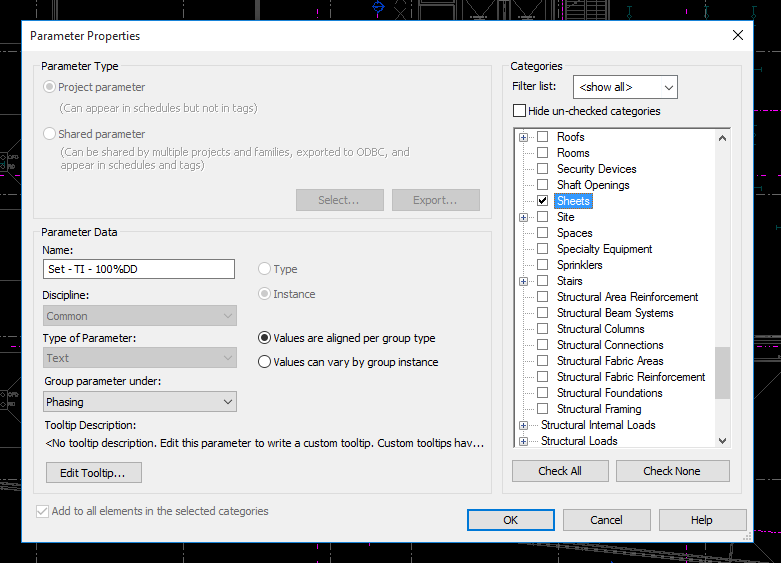
We use a Text type of parameter, so that you can decide if you want to use an “x” or even a “•”. I’ve seen some cases where a yes/no parameter had been used. I do not personally like this method because by default the parameter is neither a yes nor a no, it is displayed as a grey checkbox on the schedule which can be confusing.

Once you have your Sheet project parameter(s) created, you can generate a sheet list by going to your ribbon under View > Schedules > Sheet List.
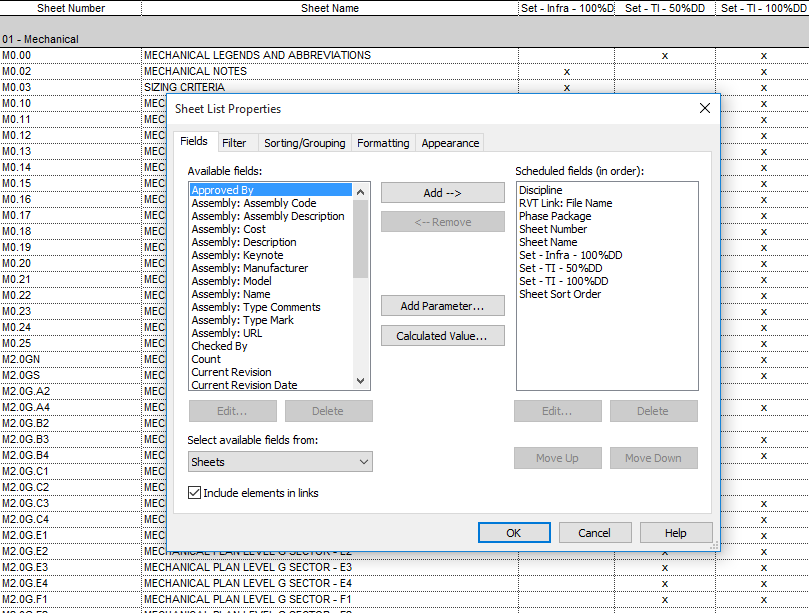
For a simple sheet list, you can simply add fields for the Sheet Number, Sheet Name, and any parameters you created to document which sheets are going into which package.
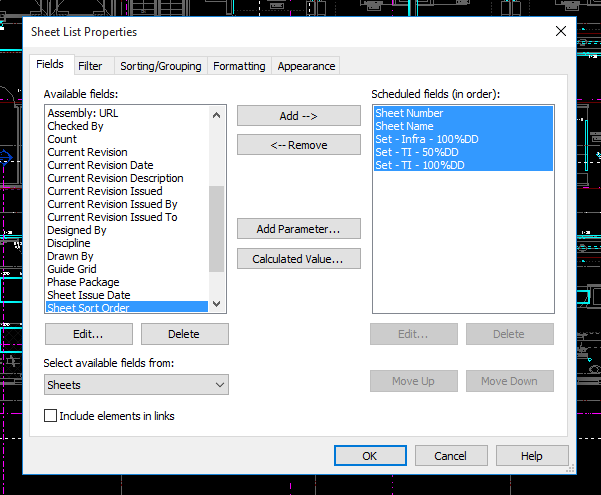
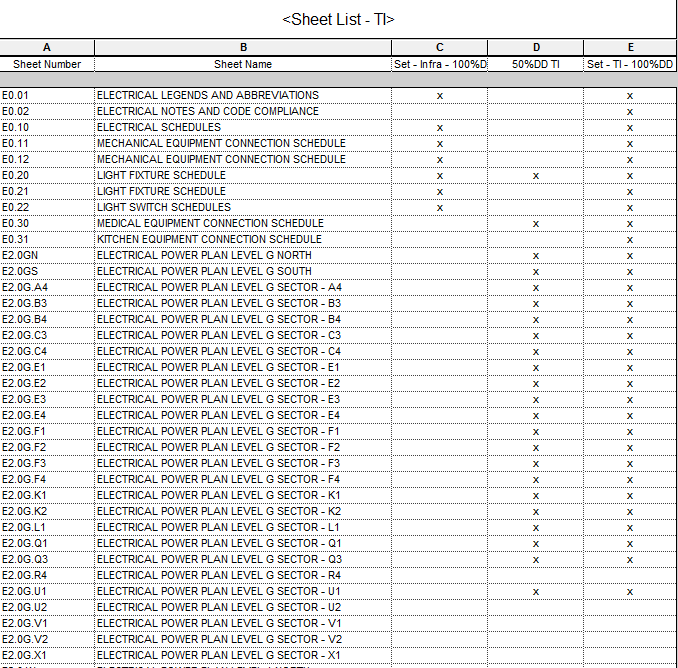
Once you have the sheet list schedule created, you can then export to Excel (via a CSV file) or drag the schedule onto a sheet.
Use Dynamo to Create a Sheet Set for Printing Directly from a Sheet List
Dynamo is a visual scripting software which taps into the Revit API. If you don't know about Dynamo yet, check it out: http://dynamobim.com/
Creating Sheet Sets (for printing) in Revit has always been a manual and tedious process, forcing you to scroll through dozens, if not hundreds, of sheets. Ticking the boxes of each sheet you want to print can lead to errors.
With Dynamo, we were able to create a workflow that creates a sheet set in Revit for printing. The workflow is somewhat simple to understand, but I will go into detail on a separate post. In a nutshell, the workflow looks for any sheets that have an “x” in the relative drawing set package parameter. If the sheet is marked with an “x”, it is added to the sheet set.
Using Dynamo, you can then print directly from a sheet list in Revit.
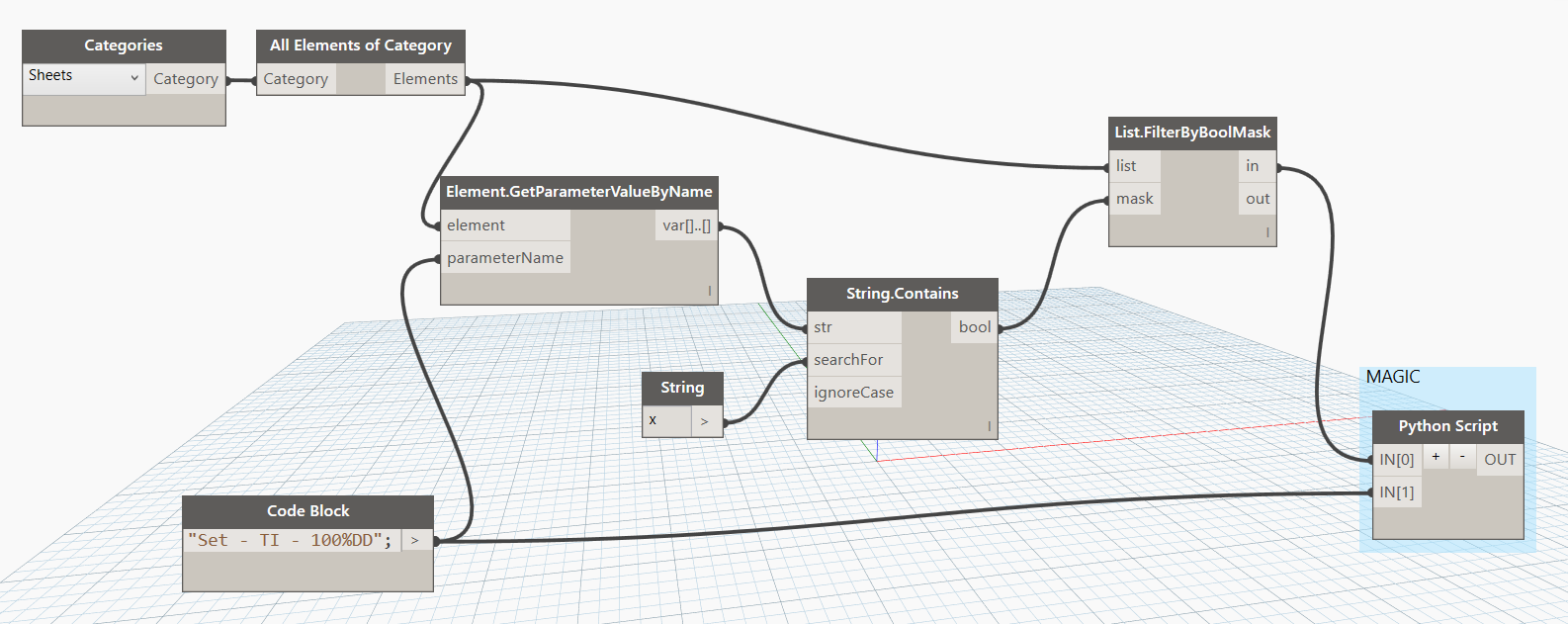
Download the Dynamo Workflow:
Dynamo - Create Sheet Set Based on a Parameter Value (4615 downloads )
Managing Multiple Models in a Single Drawing List
With multi-trade offices (like an MEP firm), it is common to maintain a single drawing list. On large projects, you are most likely to have multiple models, typically one model per trade.
I created a method to create a single drawing list of all trades from multiple models simply by creating an empty project and linking all models into it. After that, it was a breeze to create a sheet list of all disciplines by adding the appropriate field. The key is to make sure you check the box that says “include elements in links”.

I’m trying to run the dynamo script, and I’ve altered the ‘Code Block’ in the lower-left to match the name of the Project Parameter I created in the prior step, but when I run the script it says “Failed to create sheet set”. Also, where can I define the plot output? Should I just do that in plot settings before going into Dynamo? Thanks – Dynamo noob here… https://uploads.disquscdn.com/images/96d870b7b1884badaf84db8147c5ff44cdb3b0aa8730e1089169b9fb507fddd7.png
That’s strange, it should work as long as the text in the Code Block is EXACTLY how your parameter is named in your project. Can you verify that it is spelled and capitalized exactly as you’ve input it?
Also, is there a chance that there’s worksharing issue?
I can confirm the Project Parameter name was copy/pasted into the ‘Code Block’ field. I did install dynamo 1.2, I hope that didnt cause the problem. Also, what do you mean by ‘worksharing issue’? Do I need to be the only user in the project? What ‘issues’ should I be on the lookout for? Thank you for your help. Is there any kind of log that explains failures like this?
I just tested with Dynamo 1.2 and all is working on my end. If you feel comfortable sending me your model I can take a stab at it. If you want to purge everything out except sheets, that should still work.
What version of Revit are you using?
Oh, and to answer your other questions:
I thought someone might have permissions over elements in the model that is preventing you from creating a workset. Just guessing at this point.
You don’t need to be the only user in the project.
I’m not sure what other issues to look out for.
I don’t have any sort of error log for this, sorry.
Good luck!
Hey there. Did you ever get this one figured out?
Used the dynamo to create a sheet set. In the print dialog it appears that only the correct sheets are checked, but the output file printed from Adobe PDF has about 200 extra blank pages in it. The intended sheets display fine, just not sure what could be generating these additional blanks.
Whoops, just realized the answer to my own question. Figured I’d post it here in case anyone else runs into the same issue. The blanks are placeholder sheets that were created in the drawing index for the consultant sheets – they had the same project parameter in the Code Block I used for the real sheets, but don’t appear in the print dialog selection box, so there’s no way to uncheck them.