
We all know that Revit is not (and never will be) backwards compatible. Yet, we have all been there. You are knee-deep in a space planning exercise, and you find the perfect piece of furniture or equipment. You download it, try to load it into your project, and then you see it: “The file was saved in a later version of Revit.” Your project is in Revit 2022. The family is in Revit 2024. Usually, this means you either spend an hour redrawing a “box” version of it or you just give up. But what if you could just teleport the geometry backward?
I decided to run an experiment. Could I use AI and a little C# coding to force Revit 2024 to talk to Revit 2022? I knew going in that the result would be “dumb” geometry. It won’t have parametric handles or fancy formulas, but for space planning, solid and accurate geometry is all you need.
The most shocking discovery I had in this experiment was that from the first prompt to the final working code, the whole process took only about 11 minutes.
To my fellow BIM Managers and Revit purists: I know what you are thinking. This output isn’t exactly a “Gold Standard” family. In a perfect world, we would always choose native, parametric geometry over a static mesh. But remember, this wasn’t a quest for the perfect family; it was a stress test of AI capabilities. I wanted to see if Google Gemini could navigate the minefield of the Revit API and the Macro Manager to build a functional bridge where one didn’t exist before. This is a test, this is only a test, of automation… Not a replacement for good modeling habits.
The Goal: A Version-Agnostic Data Output
Since Revit 2022 cannot read a 2024 .rfa file, I needed a neutral language. I chose JSON which is basically just a text file that is structured as objects and properties. If I could turn the 3D shapes into a list of X, Y, and Z coordinates in 2024, I could read that list in 2022 and tell Revit to rebuild the faces.
The Hurdles (and the Back-and-Forth)
Programming with an AI partner is a bit like a high-speed tennis match. We ran into three specific walls that we had to climb over.
- The No-Library Rule: I didn’t want to deal with installing external dependencies. I wanted this to work in a clean Revit macro environment. This meant we had to write a “brute-force” parser that reads the text file like a human would, looking for brackets and commas.
- The API Name Game: Autodesk loves to change the names of their tools. Our 2022 macro kept crashing because the command to get geometry was renamed three times between 2022 and 2024. We learned through the documentation to find that 2022 wanted
GetGeometricalObjects()while 2024 wantedGetGeomEntity(). - The Tiny Number Trap: At one point, four objects imported perfectly, but the fifth one vanished. It turns out one coordinate was written in scientific notation (something like
7.69E-05). Our simple text reader thought thatEwas a typo and broke. We had to patch the code to tell it thatEis just code for a very tiny number.
The Macro: Revit 2024 Family Exporter
This macro goes into your 2024 session. It loops through the family geometry, breaks everything into triangles, and saves them to C:\Temp\RevitExport.json.
C#
public void ExportFamilyGeometry()
{
    Document doc = this.ActiveUIDocument.Document;
    if (!doc.IsFamilyDocument) return;

    System.Text.StringBuilder sb = new System.Text.StringBuilder();
    sb.AppendLine("{ \"Geometries\": [");

    Options opt = new Options { DetailLevel = ViewDetailLevel.Fine };
    var elements = new FilteredElementCollector(doc).WhereElementIsNotElementType().ToElements();

    bool firstSolid = true;
    foreach (Element el in elements)
    {
        GeometryElement geoElem = el.get_Geometry(opt);
        if (geoElem == null) continue;

        foreach (GeometryObject geoObj in geoElem)
        {
            Solid solid = geoObj as Solid;
            if (solid == null || solid.Volume < 0.0001) continue;

            if (!firstSolid) sb.Append(",");
            sb.AppendLine("{ \"Points\": [");

            bool firstPoint = true;
            foreach (Face face in solid.Faces)
            {
                Mesh mesh = face.Triangulate();
                if (mesh == null) continue;
                for (int i = 0; i < mesh.NumTriangles; i++)
                {
                    MeshTriangle tri = mesh.get_Triangle(i);
                    for (int v = 0; v < 3; v++) {
                        XYZ pt = tri.get_Vertex(v);
                        if (!firstPoint) sb.Append(",");
                        sb.Append(string.Format(System.Globalization.CultureInfo.InvariantCulture, "[{0},{1},{2}]", pt.X, pt.Y, pt.Z));
                        firstPoint = false;
                    }
                }
            }
            sb.AppendLine("] }");
            firstSolid = false;
        }
    }
    sb.AppendLine("] }");
    File.WriteAllText(@"C:\Temp\RevitExport.json", sb.ToString());
    TaskDialog.Show("Success", "Geometry exported to C:\\Temp");
}
The Sample Data: What the “Teleporter” Sees
To put our teleporter to the test, I borrowed a chair from the standard Revit sample project. This family was the perfect candidate because I wanted to avoid the easy win of generating basic extrusions. It features intermediate geometry like complex sweeps and rounded corners on its extrusions, which are exactly the types of details that usually cause manual redrawing to become a total chore.
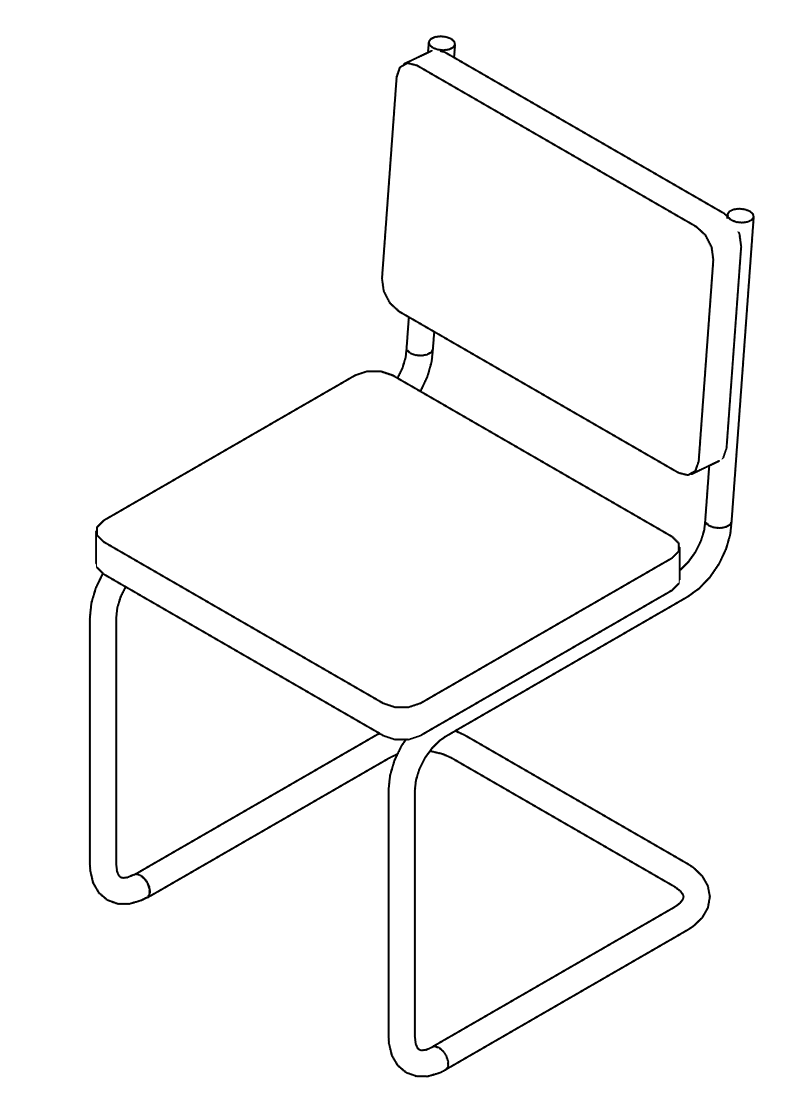
This is what a tiny slice of the 3D geometry looks like once it is converted to text. It is just a massive list of triangles.
For reference, here’s just one array of points in JSON:
{
    "Geometries": [
        { "Points": [
                [-0.69264543,0.58461815,0.07421746],
                [-0.67593836,0.58461815,0.08226314],
                [-0.62912631,0.58461815,0.05971964]
            ]
        }
    ]
}
If you’re interested, here’s the full JSON file of the geometry which contains 29,604 lines of text:
The Macro: Revit 2022 Family Geometry Importer
This macro goes into your 2022 session. It reads that JSON file and uses a TessellatedShapeBuilder to “re-mesh” the geometry as a DirectShape.
C#
public void ImportFamilyGeometry()
{
    Document doc = this.ActiveUIDocument.Document;
    string path = @"C:\Temp\RevitExport.json";
    if (!File.Exists(path)) return;

    string content = File.ReadAllText(path);
    string[] solidSections = content.Split(new string[] { "\"Points\":" }, StringSplitOptions.RemoveEmptyEntries);

    using (Transaction trans = new Transaction(doc, "Import Backward Geometry"))
    {
        trans.Start();
        int successCount = 0;

        for (int s = 1; s < solidSections.Length; s++)
        {
            try {
                string section = solidSections[s];
                char[] delimiters = new char[] { '[', ']', ',', ' ', '\r', '\n', '{', '}' };
                string[] rawValues = section.Substring(0, section.IndexOf(']')).Split(delimiters, StringSplitOptions.RemoveEmptyEntries);

                List<XYZ> points = new List<XYZ>();
                for (int i = 0; i < rawValues.Length - 2; i += 3) {
                    points.Add(new XYZ(
                        double.Parse(rawValues[i], System.Globalization.NumberStyles.Any, System.Globalization.CultureInfo.InvariantCulture),
                        double.Parse(rawValues[i+1], System.Globalization.NumberStyles.Any, System.Globalization.CultureInfo.InvariantCulture),
                        double.Parse(rawValues[i+2], System.Globalization.NumberStyles.Any, System.Globalization.CultureInfo.InvariantCulture)));
                }

                if (points.Count >= 3) {
                    DirectShape ds = DirectShape.CreateElement(doc, new ElementId(BuiltInCategory.OST_GenericModel));
                    TessellatedShapeBuilder builder = new TessellatedShapeBuilder();
                    builder.OpenConnectedFaceSet(false);

                    for (int i = 0; i < points.Count - 2; i += 3) {
                        if (points[i].DistanceTo(points[i+1]) < 0.0001) continue;
                        builder.AddFace(new TessellatedFace(new List<XYZ> { points[i], points[i+1], points[i+2] }, ElementId.InvalidElementId));
                    }

                    builder.CloseConnectedFaceSet();
                    builder.Build();
                    ds.SetShape(builder.GetBuildResult().GetGeometricalObjects());
                    successCount++;
                }
            } catch { continue; }
        }
        trans.Commit();
        TaskDialog.Show("Success", "Imported " + successCount + " objects.");
    }
}
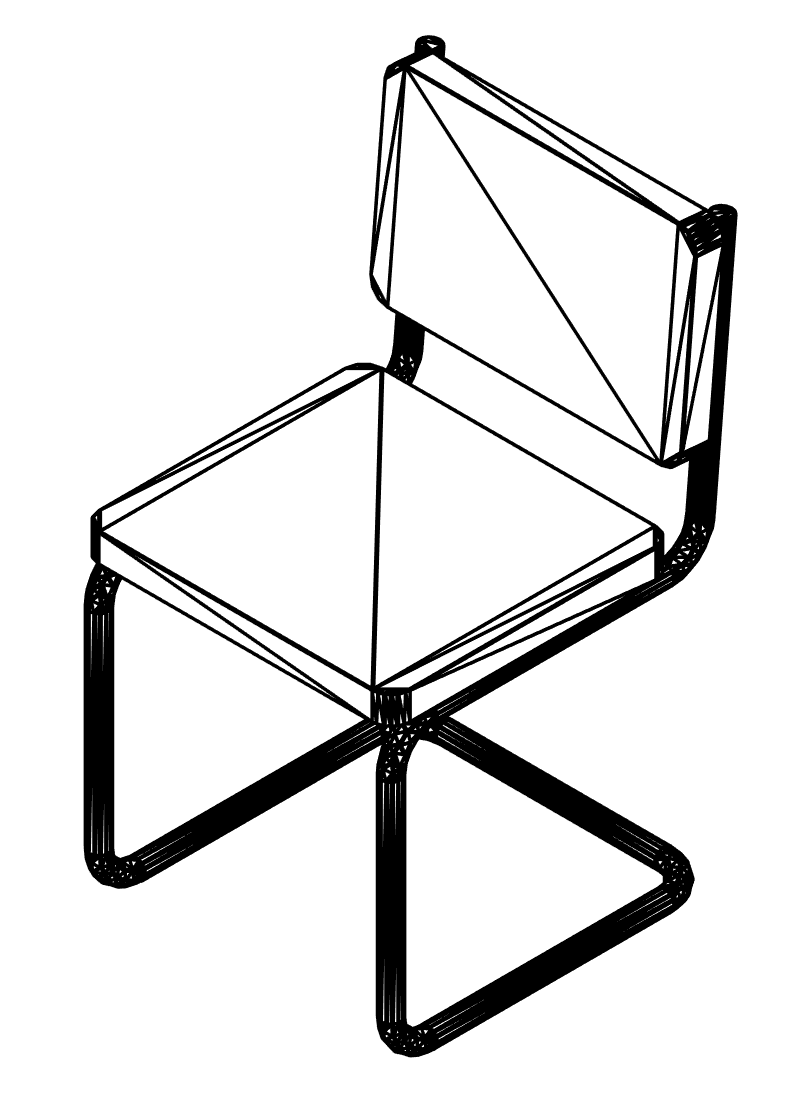
Success! The Revit Family was Downgraded to Revit 2022
Here is a look at the family after the macro worked its magic. Sure, it is “dumb geometry” that resembles a CAD import rather than a native family, but for quick space planning, it gets the job done perfectly. It is a massive upgrade over the messy alternative of importing a bloated DWG file just to see where a chair fits!
The Moral of the Story
AI isn’t going to replace a BIM Manager’s role in modeling Revit families, but it is an incredible force multiplier. I took a problem that usually results in a dead end and found a workaround in less time than it takes to get a cup of coffee.
The takeaway here is not that we should all start building meshes instead of proper Revit families. The real lesson is that the unsolved problems we have complained about for years may just be solvable in minutes with a little help. AI has turned the Revit API from a daunting mountain into a playground. The next time you hit a hard “No” in Revit, don’t just accept it. Ask yourself, “If I can explain the logic to an AI, can it write me a way out?”
Happy coding!
Leave a Reply