
Dynamo used to be my go-to for every Revit automation challenge. It was the ultimate easy button for visual thinkers and I viewed C# macros as the traditional approach best left to the coding experts. But with the recent explosion of artificial intelligence (AI), that barrier has come crashing down.
In my (humble?) opinion, AI makes Revit macros the fastest way to automate tasks in Revit. Yes, even faster than “wiring up” nodes in Dynamo.
The nodes are gone and the code is back, but this time, AI is doing the heavy lifting.
Putting Google Gemini To The Test
As an experiment, I set out to see if I could fully automate the creation of a conceptual tower in Revit. Everything from creating the levels, views, model elements, and sheet creation, without writing a single line of code myself. I also wanted to see just how far I could push Gemini’s ability to handle the tasks in Revit in a single pass (a single macro).

In a traditional workflow, manually creating 20 levels, slabs, floor plan views, and sheets would be a tedious, multi-hour ordeal. Even in Dynamo, an experienced specialist would likely spend an hour or two wiring up nodes, managing list lacing, and possibly even managing a few package dependencies to get this right.
The result was a 5-minute development cycle and a 2-second execution for what could have been a multi-hour task if done manually. Here’s exactly how it happened.
The Spark: My Original Prompt
I reached out to Gemini and provided this prompt:
Create a new C# Revit macro for me which creates multiple levels and copies the floor from L1 to the rest of the levels. I need the floor element to get smaller by 2 feet on each level up to the 10th level, then get larger by 2 feet from level 11 and up to 20. Levels L2 through L20 will need to be created and then the floor created per level and a Floor Plan View per level. Once complete, create a sheet for each floor. Number them A2.xx where xx is the number of the level including leading zeros. The titleblock family to be used is named 'E1 30 x 42 Horizontal'. Place each view on its respective sheet at 1/8" scale.
I did have some back and forth with Gemini to debug. However, after just two revisions we got the macro to work perfectly. All within about five minutes.
The Solution: The “5-Minute” Macro
Here is the final, hardened C# code that brought the tower to life:
public void CreateTowerWithAdaptiveFloors()
{
    Document doc = this.ActiveUIDocument.Document;

    // 1. Get Prerequisites
    Floor originalFloor = new FilteredElementCollector(doc)
        .OfClass(typeof(Floor))
        .Cast<Floor>()
        .FirstOrDefault();

    FamilySymbol titleBlock = new FilteredElementCollector(doc)
        .OfClass(typeof(FamilySymbol))
        .OfCategory(BuiltInCategory.OST_TitleBlocks)
        .Cast<FamilySymbol>()
        .FirstOrDefault(x => x.Name.Contains("30 x 42"));

    ViewFamilyType floorPlanType = new FilteredElementCollector(doc)
        .OfClass(typeof(ViewFamilyType))
        .Cast<ViewFamilyType>()
        .FirstOrDefault(x => x.ViewFamily == ViewFamily.FloorPlan);

    if (originalFloor == null || titleBlock == null)
    {
        TaskDialog.Show("Error", "Ensure a floor exists on L1 and a Titleblock is loaded.");
        return;
    }

    using (Transaction trans = new Transaction(doc, "Generate Tower"))
    {
        trans.Start();
        if (!titleBlock.IsActive) titleBlock.Activate();

        for (int i = 2; i <= 20; i++)
        {
            try
            {
                // 2. Create Level
                double elevation = (i - 1) * 12.0;
                Level newLevel = Level.Create(doc, elevation);
                newLevel.Name = "L" + i;

                // 3. Create Floor Plan View
                ViewPlan newPlan = ViewPlan.Create(doc, floorPlanType.Id, newLevel.Id);
                newPlan.Name = "Level " + i + " Plan";

                // FIX: Check if Scale is read-only (controlled by template)
                Parameter scaleParam = newPlan.get_Parameter(BuiltInParameter.VIEW_SCALE);
                if (scaleParam != null && !scaleParam.IsReadOnly)
                {
                    scaleParam.Set(96); // 1/8" scale
                }

                // 4. Calculate Offset and Create Floor
                double offsetValue = (i <= 10) ? (i - 1) * -2.0 : -18.0 + ((i - 10) * 2.0);
                IList<CurveLoop> profile = GetFloorProfile(originalFloor, offsetValue);

                if (profile != null && profile.Count > 0)
                {
                    Floor.Create(doc, profile, originalFloor.FloorType.Id, newLevel.Id);
                }

                // 5. Create Sheet and Place View
                string sheetNum = "A2." + i.ToString("D2");
                ViewSheet sheet = ViewSheet.Create(doc, titleBlock.Id);
                sheet.SheetNumber = sheetNum;
                sheet.Name = "FLOOR " + i;

                Viewport.Create(doc, sheet.Id, newPlan.Id, new XYZ(1.75, 1.25, 0));
            }
            catch (Exception ex)
            {
                // Log the error for a specific level but keep the loop running
                continue;
            }
        }
        trans.Commit();
    }
}

private IList<CurveLoop> GetFloorProfile(Floor floor, double offset)
{
    List<CurveLoop> profile = new List<CurveLoop>();
    Options opt = new Options();
    GeometryElement geo = floor.get_Geometry(opt);

    foreach (GeometryObject obj in geo)
    {
        Solid solid = obj as Solid;
        if (solid != null && solid.Volume > 0)
        {
            foreach (Face face in solid.Faces)
            {
                PlanarFace pf = face as PlanarFace;
                if (pf != null && pf.FaceNormal.IsAlmostEqualTo(XYZ.BasisZ))
                {
                    CurveLoop loop = pf.GetEdgesAsCurveLoops().First();
                    profile.Add(CurveLoop.CreateViaOffset(loop, offset, XYZ.BasisZ));
                    return profile;
                }
            }
        }
    }
    return profile;
}
The Result
I’ll admit that I was skeptical at first. Just because a macro can compile, doesn’t mean it will do what you wanted it to do. To my surprise, Gemini was able to model the high-rise including the levels with a slab per level, tapering in toward the 10th floor before expanding back out on the upper floors. Exactly what I asked for.
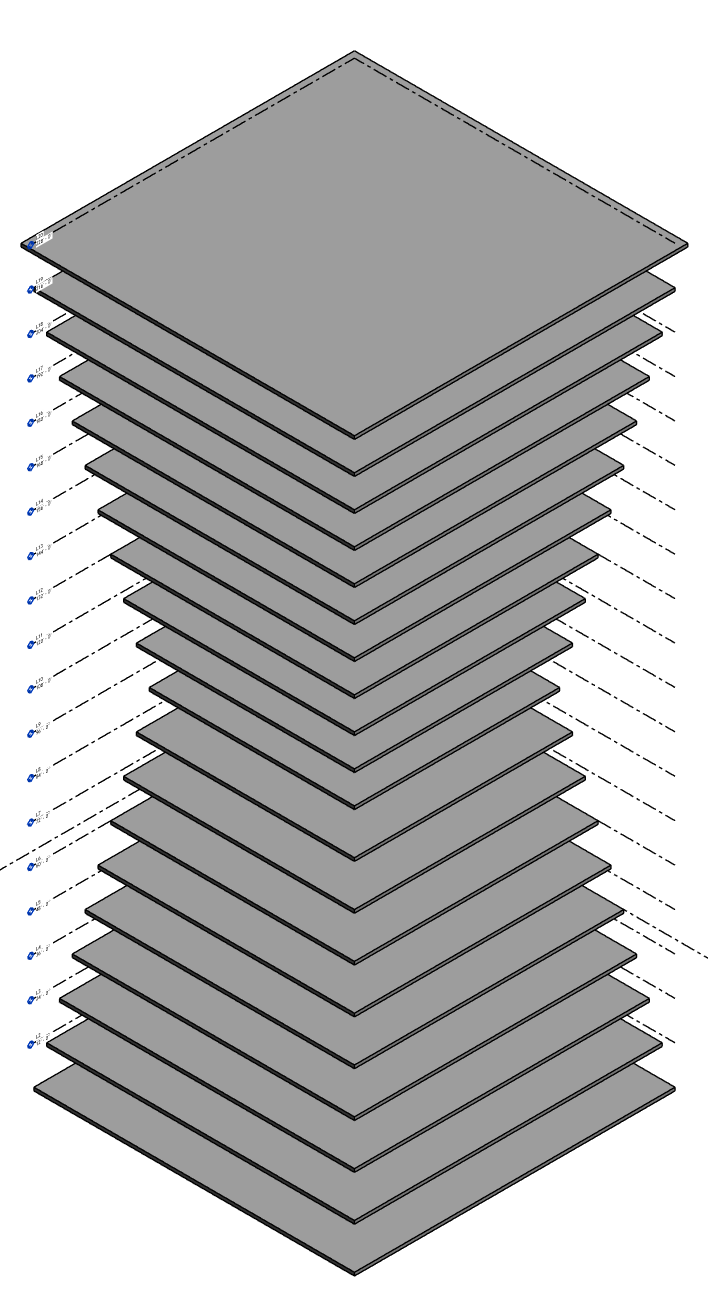
Model + Documentation From a Single Macro
The true time-savings of this macro isn’t just in the geometry, it’s the end-to-end model plus documentation setup. Gemini’s macro was able to create a view and sheet for each level and even place the respective viewport on its sheet.
If I were using Dynamo, this step might have been an entirely different graph (i.e., Dynamo script).
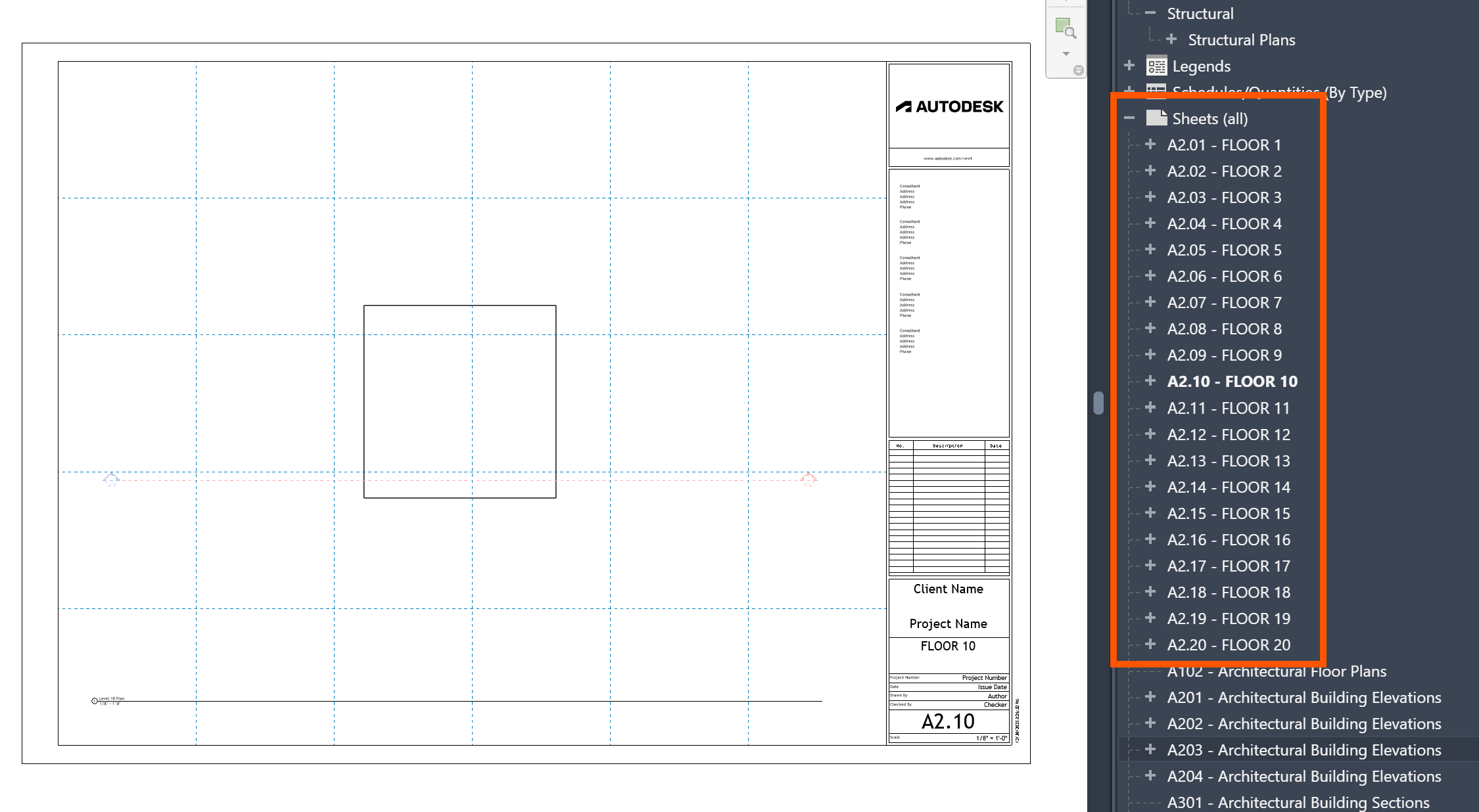
As a summary, here’s what the Gemini was able to produce that helps with automating documentation.
- Floor Plan Views automatically set to 1/8″ scale.
- Sheets using the specified titleblock.
- Numbering Standards are applied sequentially per level (A2.02, A2.03, etc.).
- Viewport Placement with each floor plan on its respective sheet
Conclusion: Coding in C# is now faster than visual scripting.
In the past, an experienced BIM specialist might spend an hour or two wrestling with Dynamo—managing complex list lacing, calculating coordinate transformations, and hunting down elusive custom nodes just to get the script to run. Even then, you were always one missing package away from “Dependency Hell,” where your graph breaks the moment you share it with a colleague who doesn’t have the exact same version of Clockwork or Springs installed.
On the other hand, none of these issues exist when using Revit macros.
My most profound takeaway? I truly think the “coder barrier” has been demolished (or at least cut down to size). You no longer need years of formal software development training to harness the raw power of C# and the Revit API.
While Dynamo has a learning curve, AI allows a non-coder to simply describe a problem in plain English and receive a solution in seconds.
Why Macros are Winning the Automation War (IMO)
- Simplified Dependencies: Macros are mostly self-contained, so you don’t have to worry about your team having the right custom packages installed.
- Readbility: We’ve all seen “spaghetti” Dynamo graphs that can be impossible to read, even with the nodes grouped and color-coded. C# code is structured, searchable, and (with Gemini’s help) commented like a clear set of instructions.
- Scalability: This is the ultimate “pro” move. Once you have a functional Revit macro, you are 90% of the way to a full-blown Revit Add-in. You can easily port this code into Visual Studio to create dedicated ribbon buttons and professional tools for your entire firm.
Gemini doesn’t just write the code; it acts as your personal developer, helping you debug, refine, and harden your scripts until they are bulletproof. We are entering a new era of BIM where your ability to automate is limited only by your ability to describe what you need.
It looks like the “old way” of coding Revit macros is back to being the fastest way to automate tasks. What do you think?


Leave a Reply